Using Quick Populate Tool
Automatically add people to your architectural images with control over density, demographics, and context.
What is the Populate Tool?
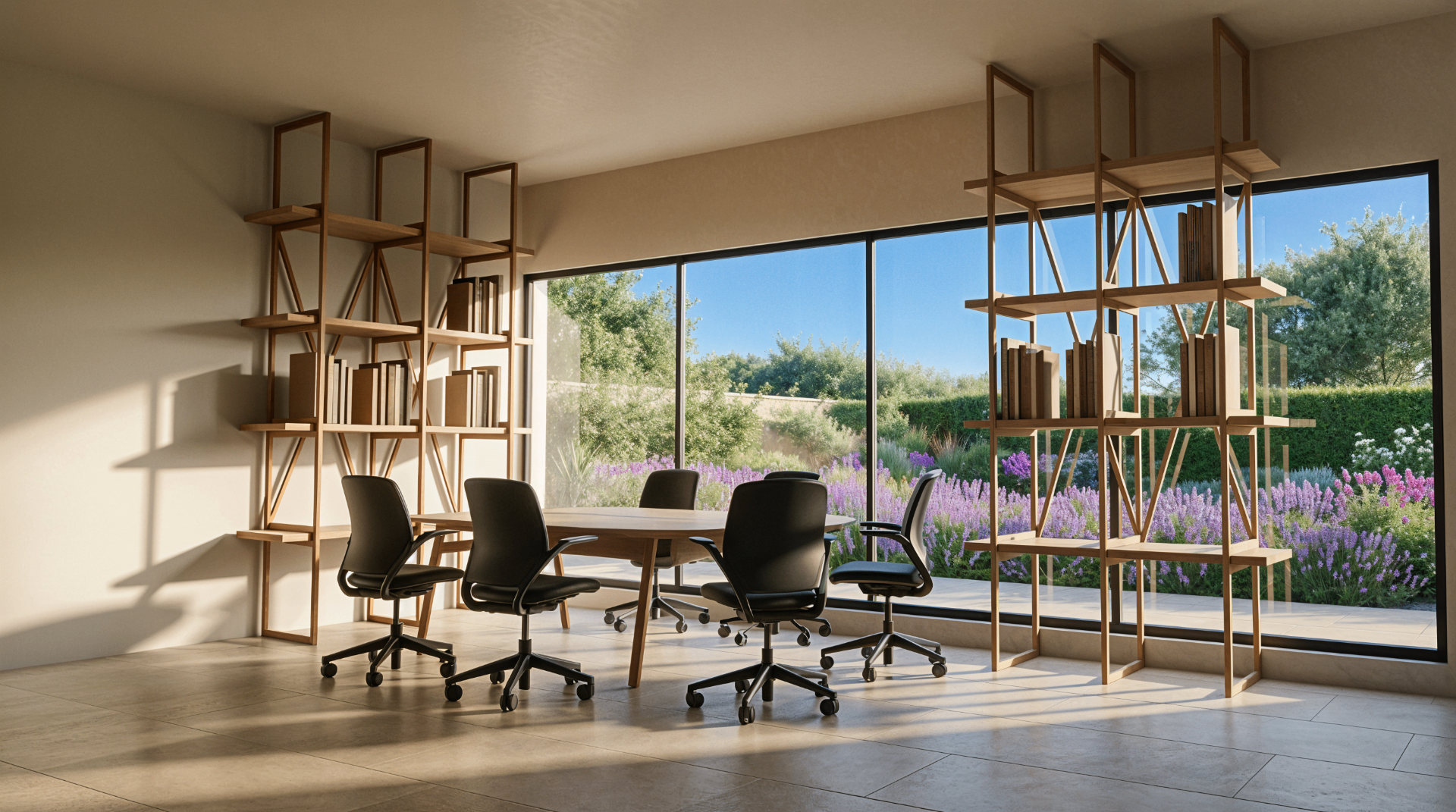
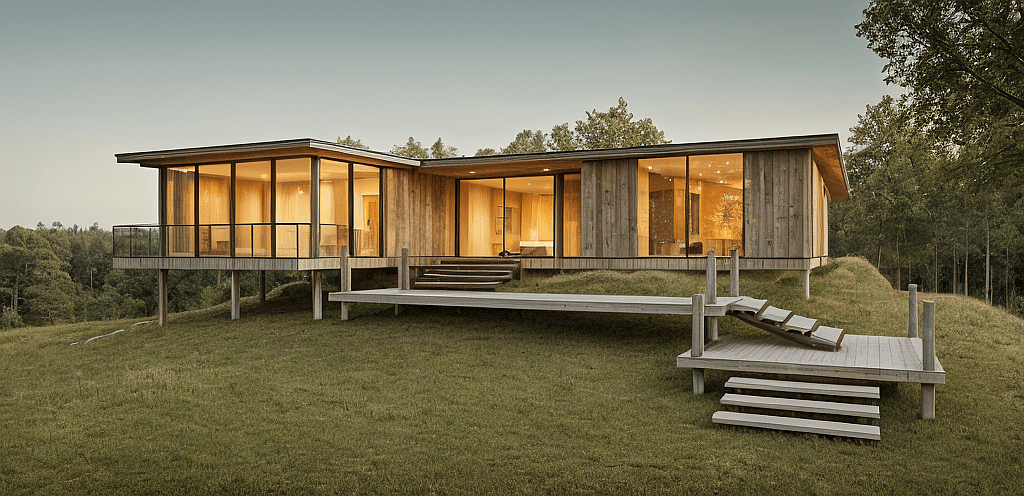
The Populate tool allows you to automatically add people to your architectural images to create more realistic and lively scenes. This feature is useful for quickly populating spaces such as interiors, public spaces, residential environments, commercial environments and more. The tool intelligently places people in appropriate areas of the image while preserving the architecture and composition. You can control the density of people — from a sparse few to a busy crowd — as well as their demographic characteristics, allowing you to create scenes that match the context of your design.
Understanding the interface
The Populate Panel
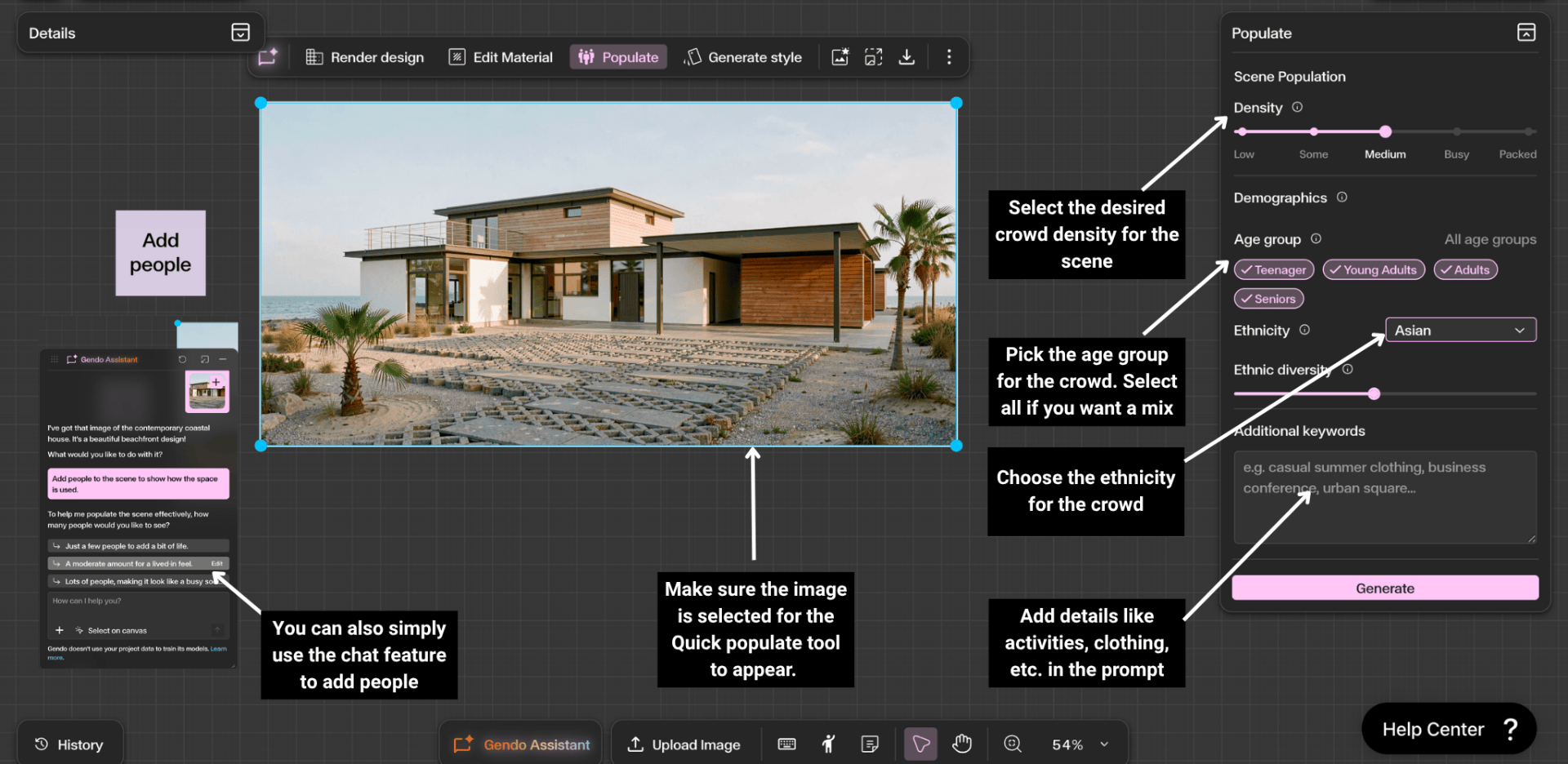
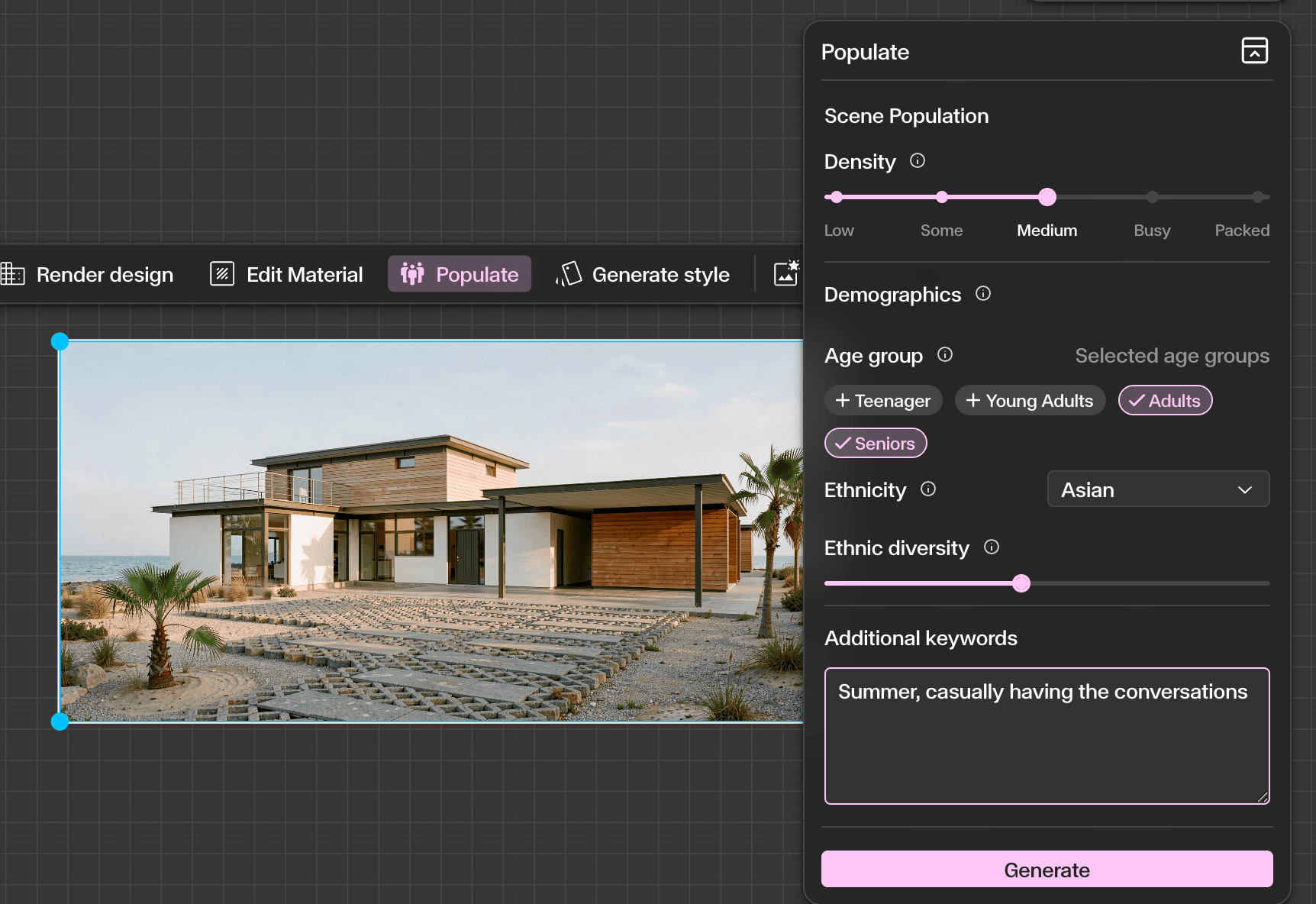
Select an image on the canvas and click Populate from the contextual toolbar to open the panel. Density — controls crowd density from Low through Some, Medium, Busy, to Packed. Demographics — set Age Group (Teenager, Young Adults, Adults, Seniors) and Ethnicity to define who appears in the scene. Additional Keywords — add context such as casual summer clothing, business conference, or urban square to guide clothing, activity, and atmosphere. You can also use the Gendo Assistant chat to add people conversationally.
Step by Step
Select your image and find Populate
Click on an image on the canvas to select it. A contextual toolbar appears above the image — click **Populate** to open the Populate panel on the right side of the canvas.
Adjust your settings
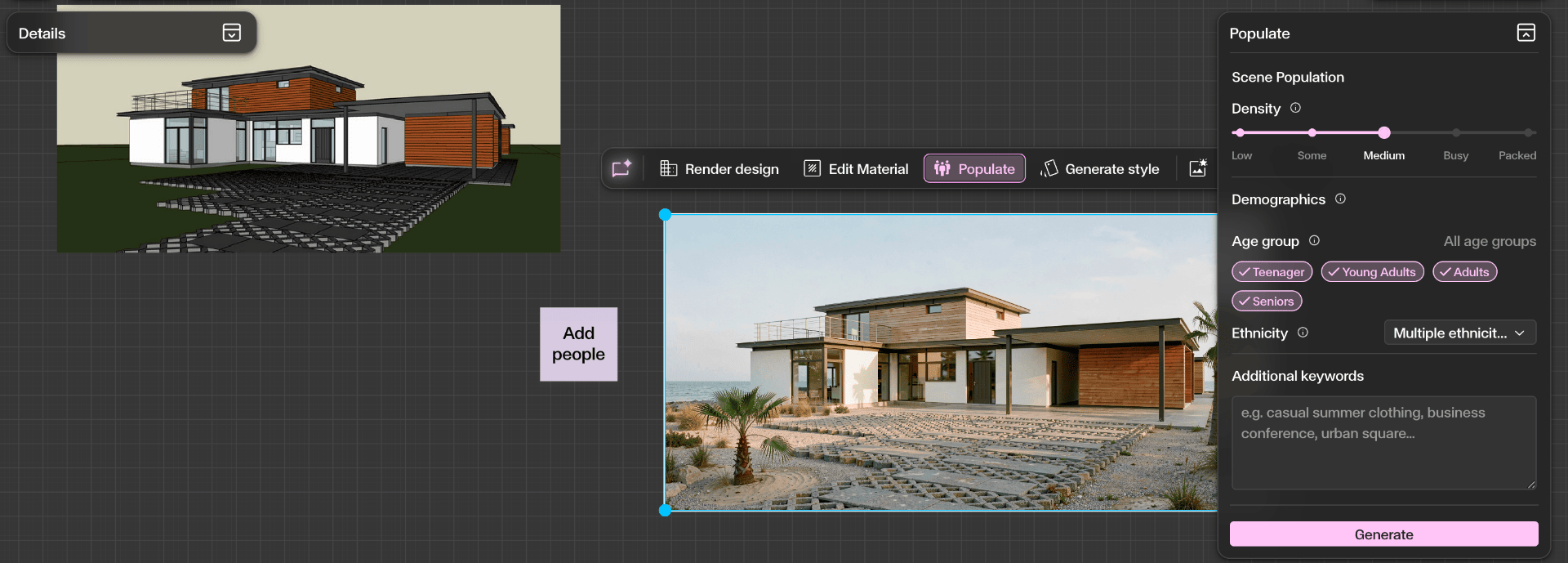
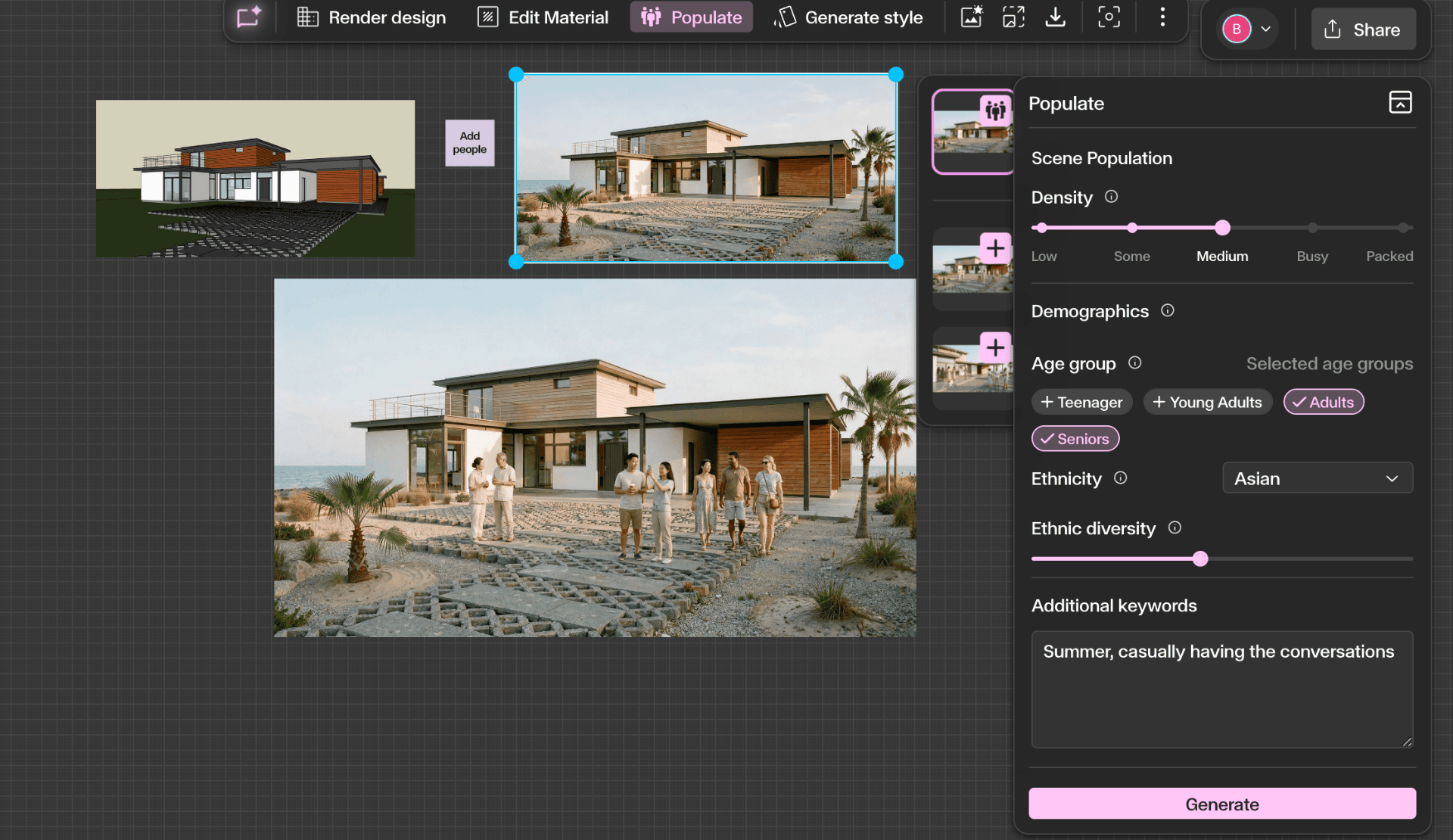
Set the **Density** slider to control crowd size — from Low to Packed. Under **Demographics**, select one or more **Age Groups** (Teenager, Young Adults, Adults, Seniors) and choose an **Ethnicity** option. Use the **Additional Keywords** field to guide clothing, activity, and atmosphere — for example, 'Summer, casually having conversations'.
Generate and add to canvas
Click **Generate** to create a populated version of the image. The result appears alongside the original on the canvas. Click the **+** button to add it, then repeat with different settings to explore variations.
Get Better Results
Use the Density slider to match the intended use of the space — a library needs fewer people than a market square.
Combine Age Group and Ethnicity settings for contextually appropriate scenes.
Add descriptive keywords like 'casual summer clothing' or 'business meeting' to influence clothing and behaviour.
Generate multiple versions with different density levels to show clients how a space performs at various occupancy levels.