Manage Your Organization
Create, switch, and configure organizations to structure your team's workspace.
What are Organizations?
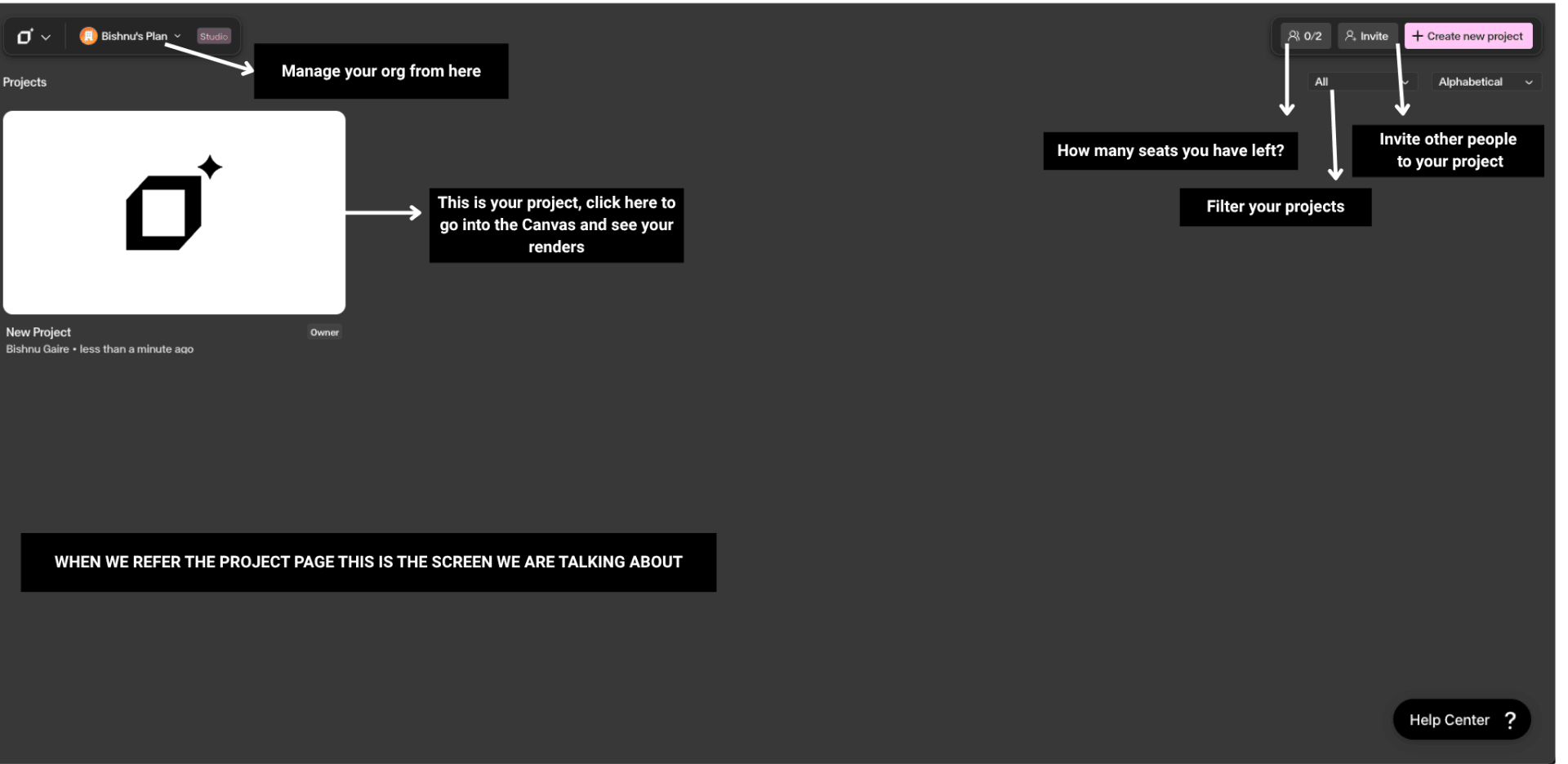
Organizations are the top-level container for your team's workspace in Gendo. All projects, canvases, and team members belong to a specific organization, and each organization can contain unlimited projects. Each organization has an Owner who controls subscription, billing, seats, and permissions. Each paid plan is tied to a single organization — one paid plan covers one organization. You can additionally create one Free organization alongside your paid org, and you can be invited to unlimited organizations created by others.
What you will see
Organization Settings
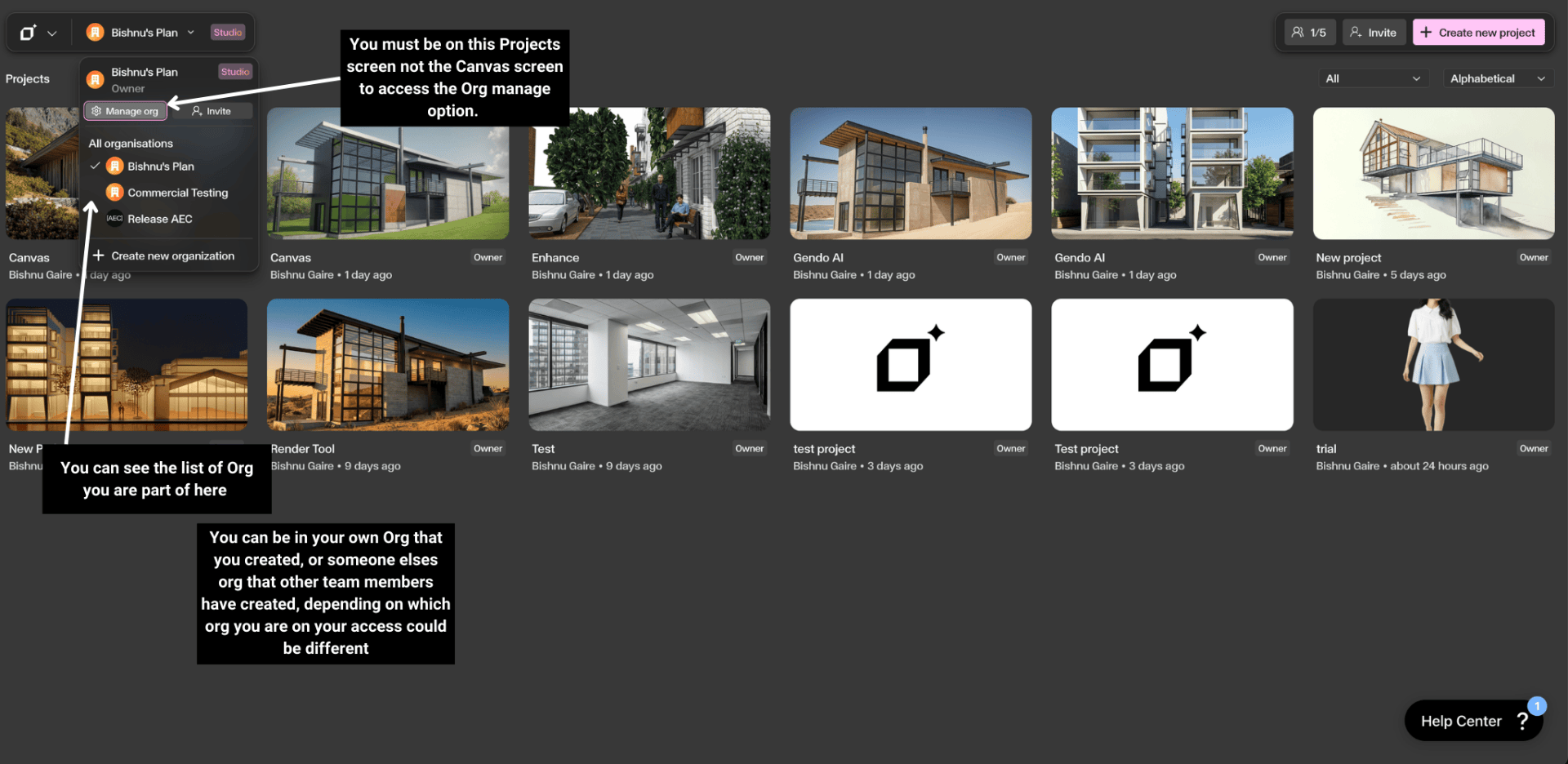
To access organization settings: go to the Projects page → click the organization name in the top-left corner → select Manage org. From here you can manage team members and seats, view subscription details, configure organization settings, and transfer ownership.
Common Questions
How do I switch between organizations?
Click the organization dropdown in the top-left corner of the Projects page → select the organization you want to switch to. Your permissions and access may differ depending on which organization you are in.
How do I create a new organization?
Click the organization name in the top-left corner → select Create new organization → enter the name. Each paid plan is associated with a single organization, so a paid subscription cannot be shared across multiple organizations. You can have one paid organization plus a maximum of one additional Free organization. Within any organization, you can create as many projects as you need.
How do I transfer ownership?
Go to Manage org → Organization Settings → Transfer Ownership → select the new owner from your team members. Only the current Owner can transfer ownership.
Who can manage billing?
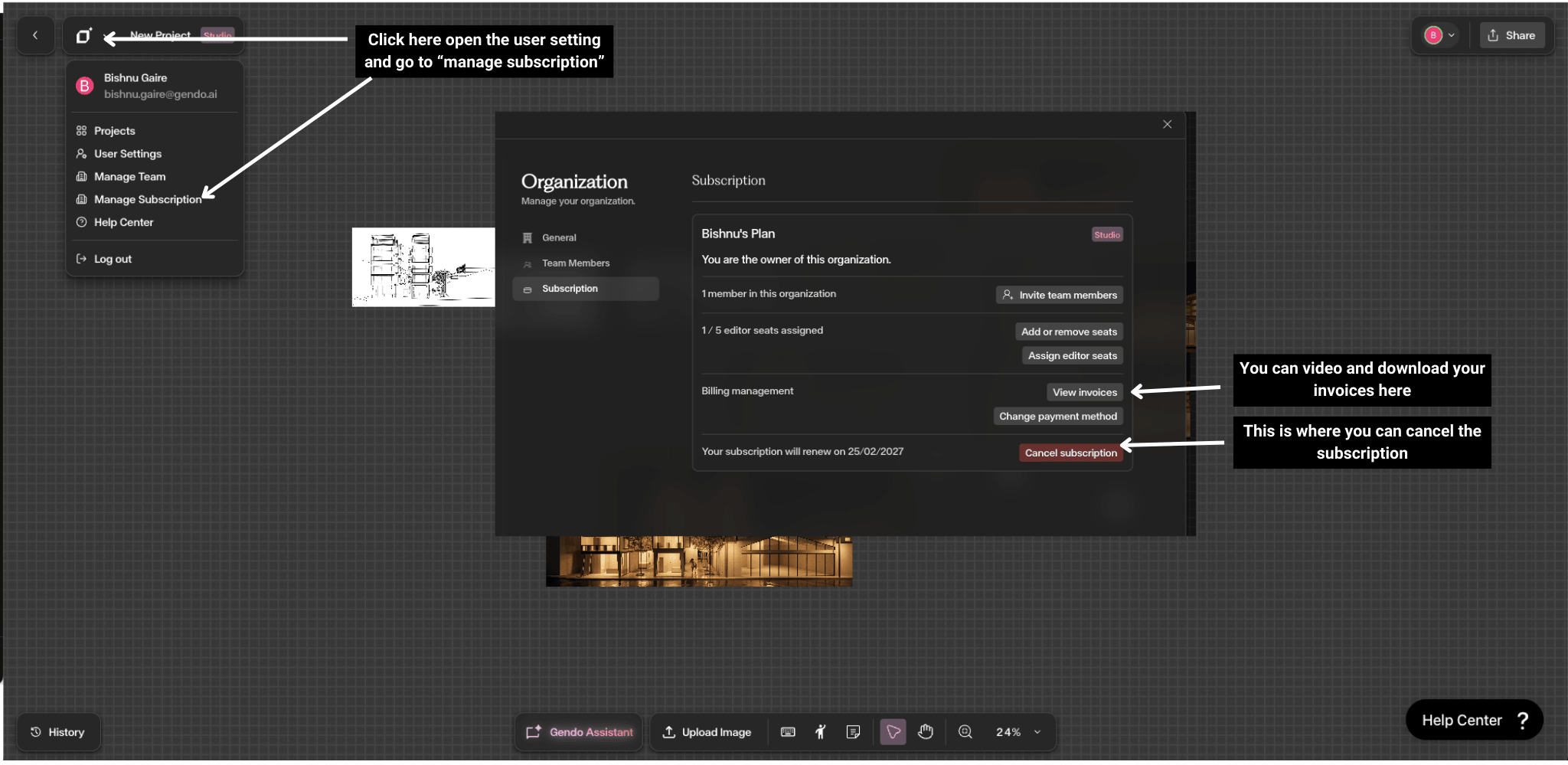
Only the Organization Owner can manage subscriptions, billing, and plan upgrades. If you need billing access, ask the current Owner to transfer ownership to you.
For details on invoices and payment methods, see the Subscription Management guide.
Tips and Limitations
Small studios typically need one organization — larger practices may use a paid org plus one additional Free org.
Use the Workspace Selector in the top-left to switch between organizations quickly.
Each paid plan covers a single organization — to run two paid orgs you would need two paid subscriptions.
You can create unlimited projects within a single organization, so most teams only need one.
Only the Organization Owner can manage subscriptions — ensure the right person holds ownership.