Manage Your Team
Control who can edit, generate, and collaborate inside your Gendo workspace.
How Does Team Management Work?
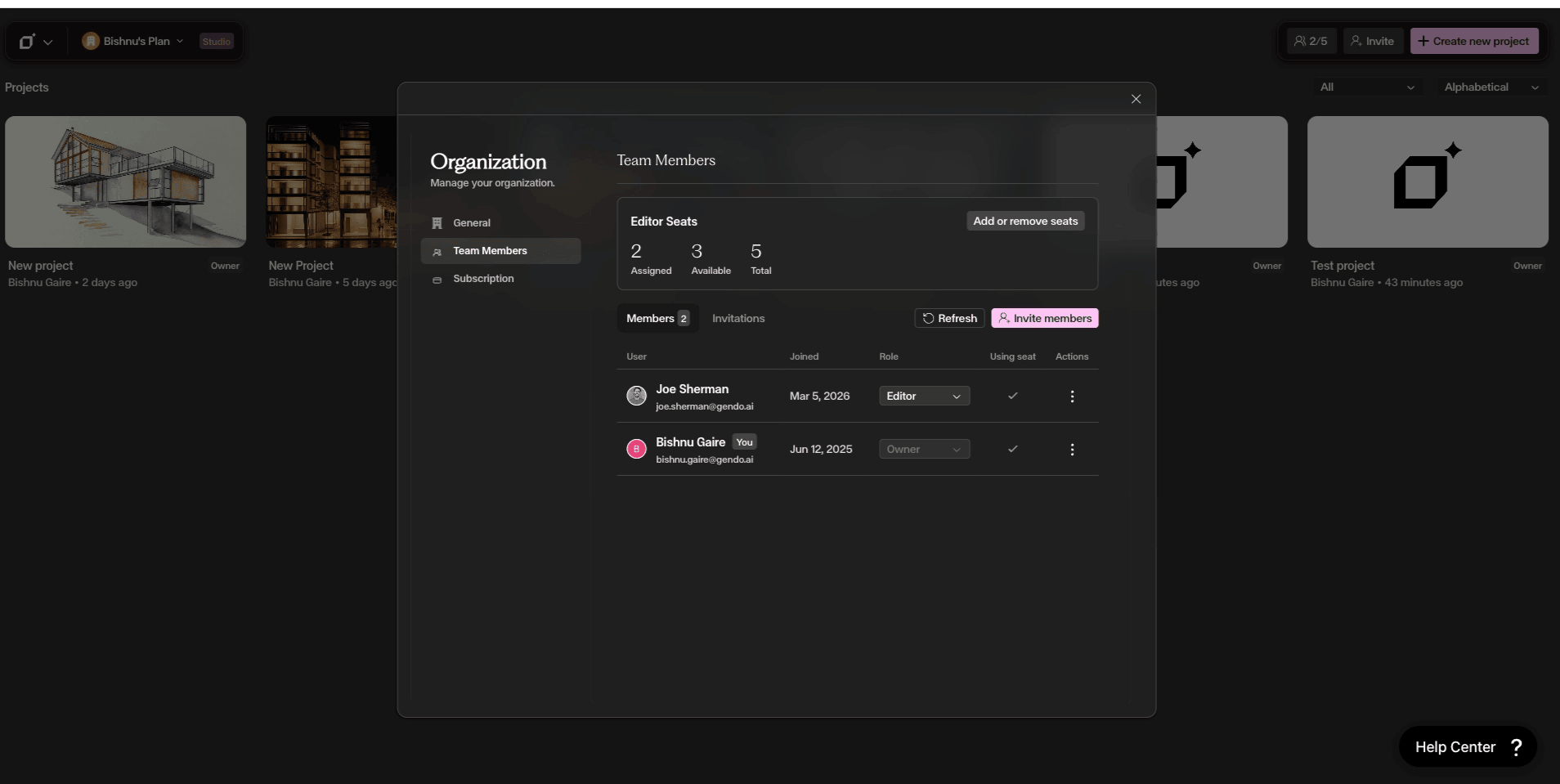
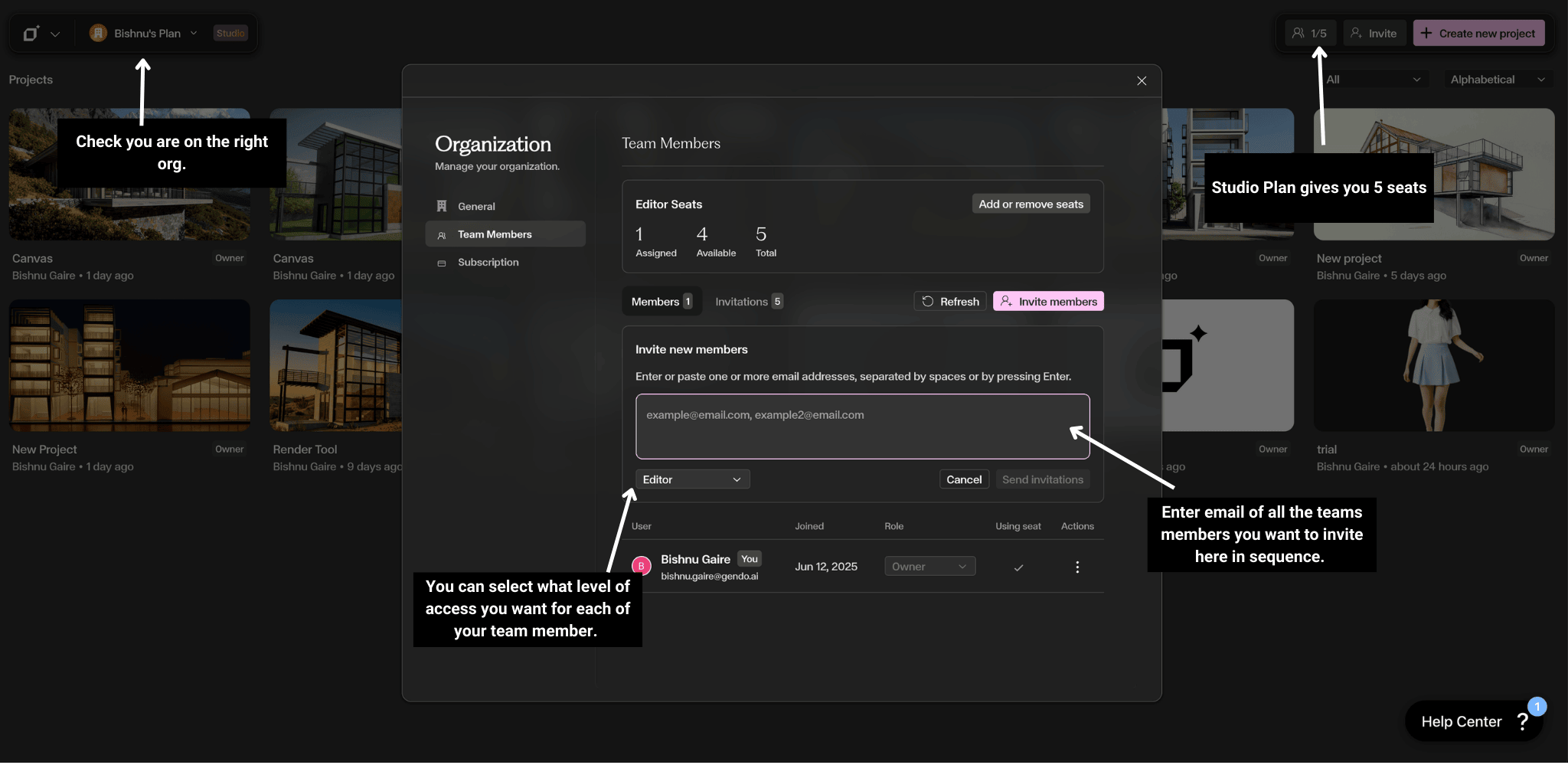
Team Management controls who can access and collaborate within your Gendo workspace. You can invite members, assign roles, manage seats, and share projects externally. Organization Owners and Admins can manage team settings. The Free plan includes one editor seat plus one collaborator. The Studio plan includes five editor seats by default, with additional seats available.
What you will see
Team Members Panel
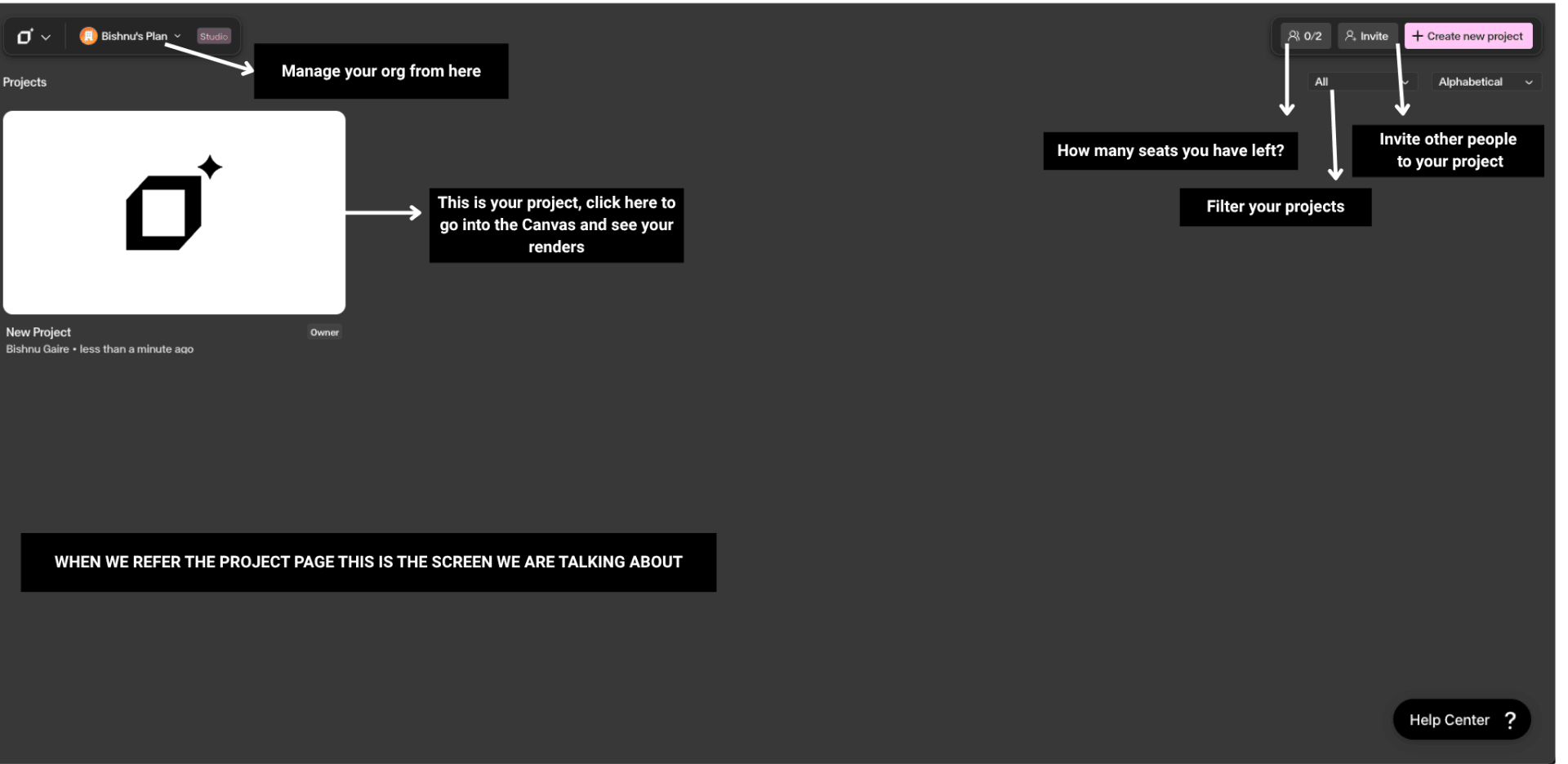
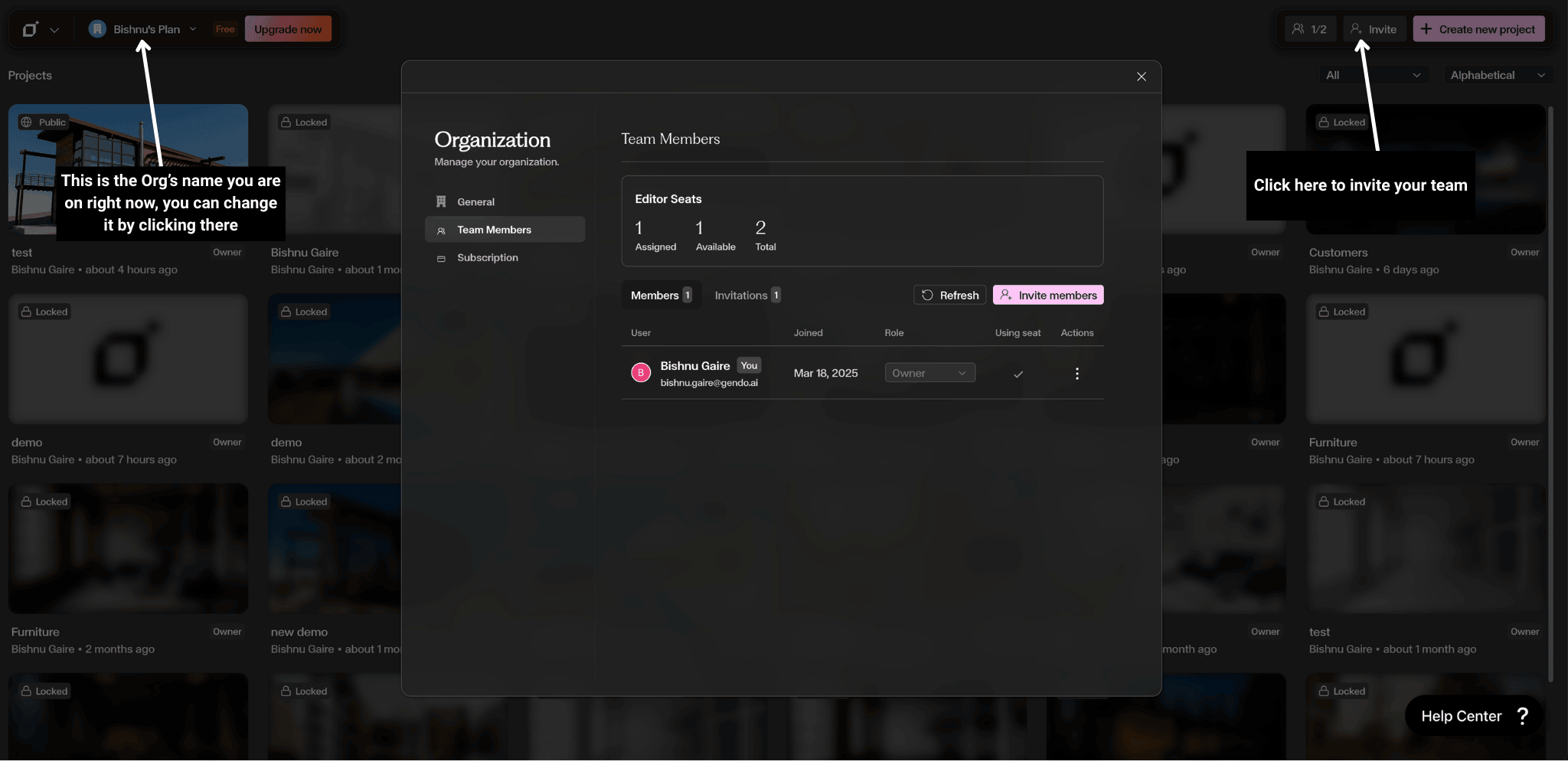
To access team settings: click your organization name in the top-left corner of the Projects page → select Manage org → open Team Members. From here you can see assigned seats, available seats, total seats, current members and their roles, and pending invitations.
Roles and Permissions
Each team member is assigned a role that determines what they can do inside the workspace.
- Editor — Can generate images, edit canvases, and access all projects
- Viewer — Can view projects and canvases but cannot generate or edit
- Admin — Can manage members, settings, and seat allocation
- Owner — Full control including subscription and billing
Common Questions
How do I invite team members?
Go to the Projects dashboard → click the Invite button in the top-right corner → enter the email address → select a role (Editor, Viewer, or Admin) → click Send invitation.
How do I share a project with a client?
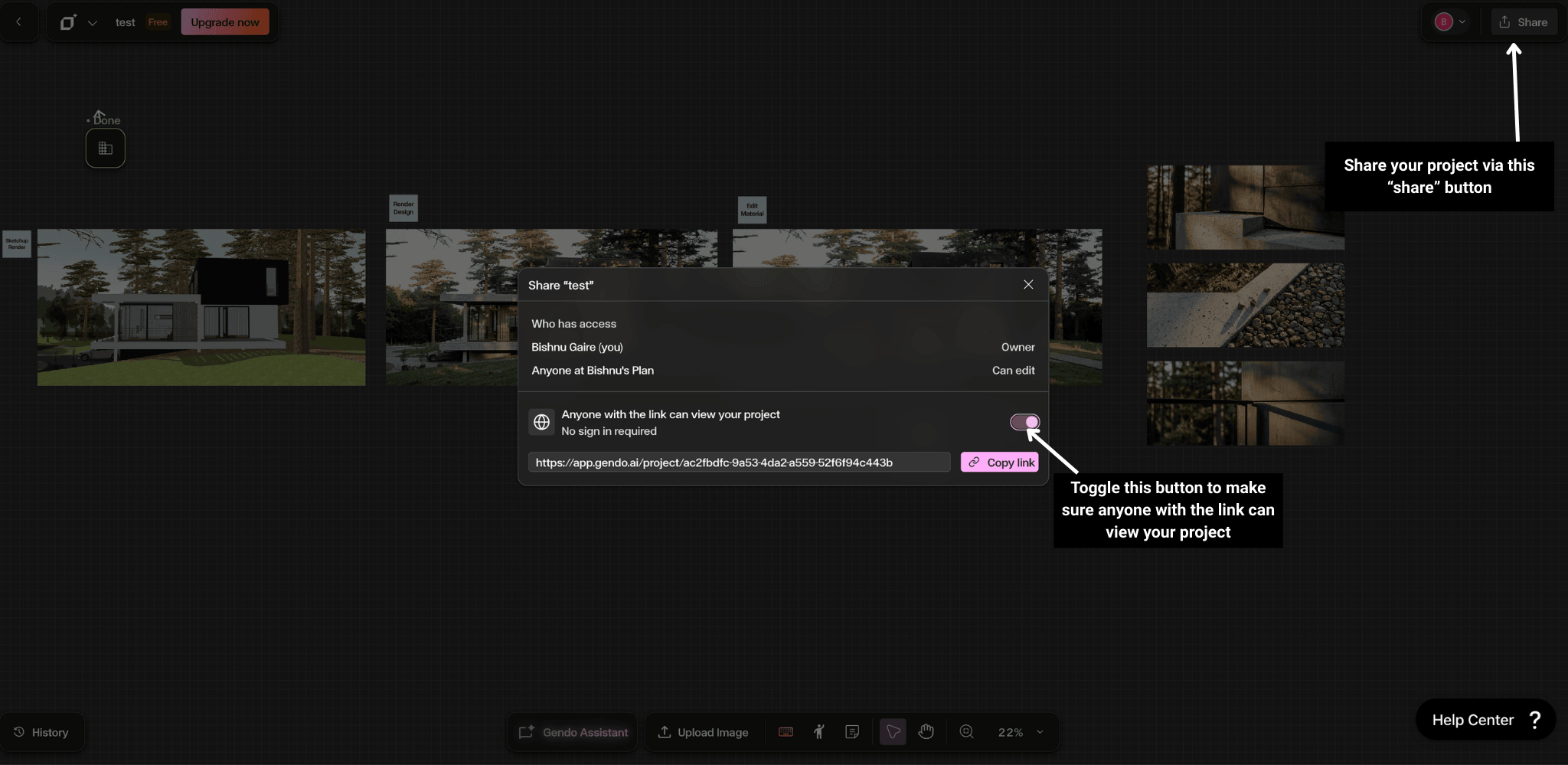
Open the project → click Share → enable 'Anyone with the link can view your project' → copy the link and send it. Viewers do not need a Gendo account and cannot edit or generate.
How do I change a team member's role?
Go to Manage org → Team Members → find the member → click their current role → select the new role from the dropdown.
How do I remove a team member?
Go to Manage org → Team Members → find the member → click Remove. Removing a member frees up their seat immediately.
How do I check how many seats are available?
The seat counter (e.g. 1/5) is visible next to the Invite button on the Projects dashboard and inside Manage org → Team Members.
Tips and Limitations
Free Plan includes one editor seat plus one collaborator — ideal for testing workflows before upgrading.
Share projects with clients via link for view-only access — no Gendo account required.
Check the seat counter before inviting new members to avoid hitting your limit.
Use role-based access to control what each team member can do — assign the minimum permissions needed.