The New Canvas
An introduction to Gendo's AI-powered architectural design canvas.
What is the Gendo Canvas?
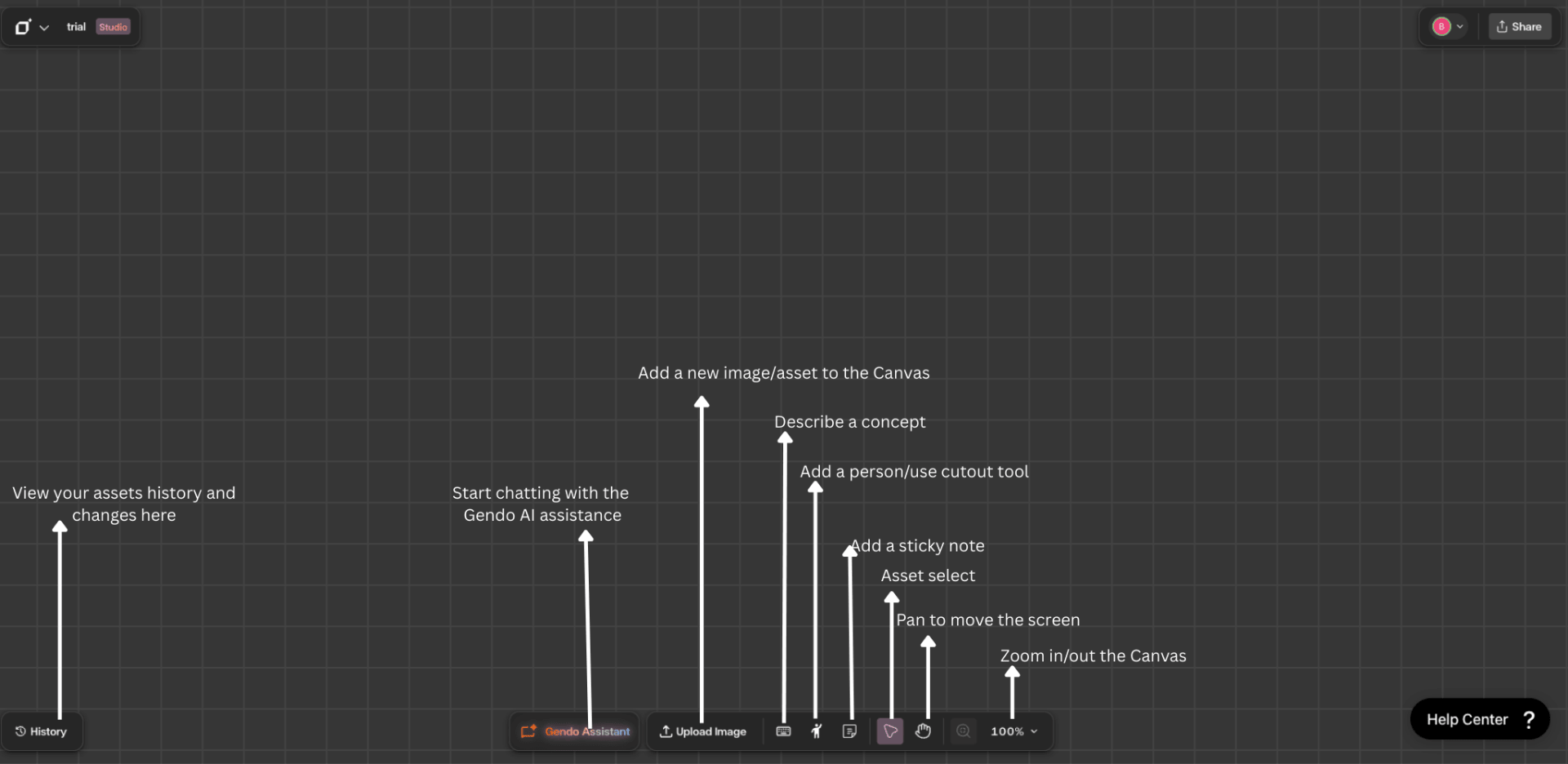
The Gendo Canvas is the AI-powered architectural design workspace built for professional design teams. It is a unified surface where you develop, iterate, and collaboratively refine your projects — with every decision captured, tracked, and shared. The canvas supports every stage of the design process, from early concept sketches through to client sign-off, with privacy and IP protection built in by default. Whether you are working solo or across a distributed studio, the canvas acts as your single source of truth.
Understanding the interface
One workspace for your entire project
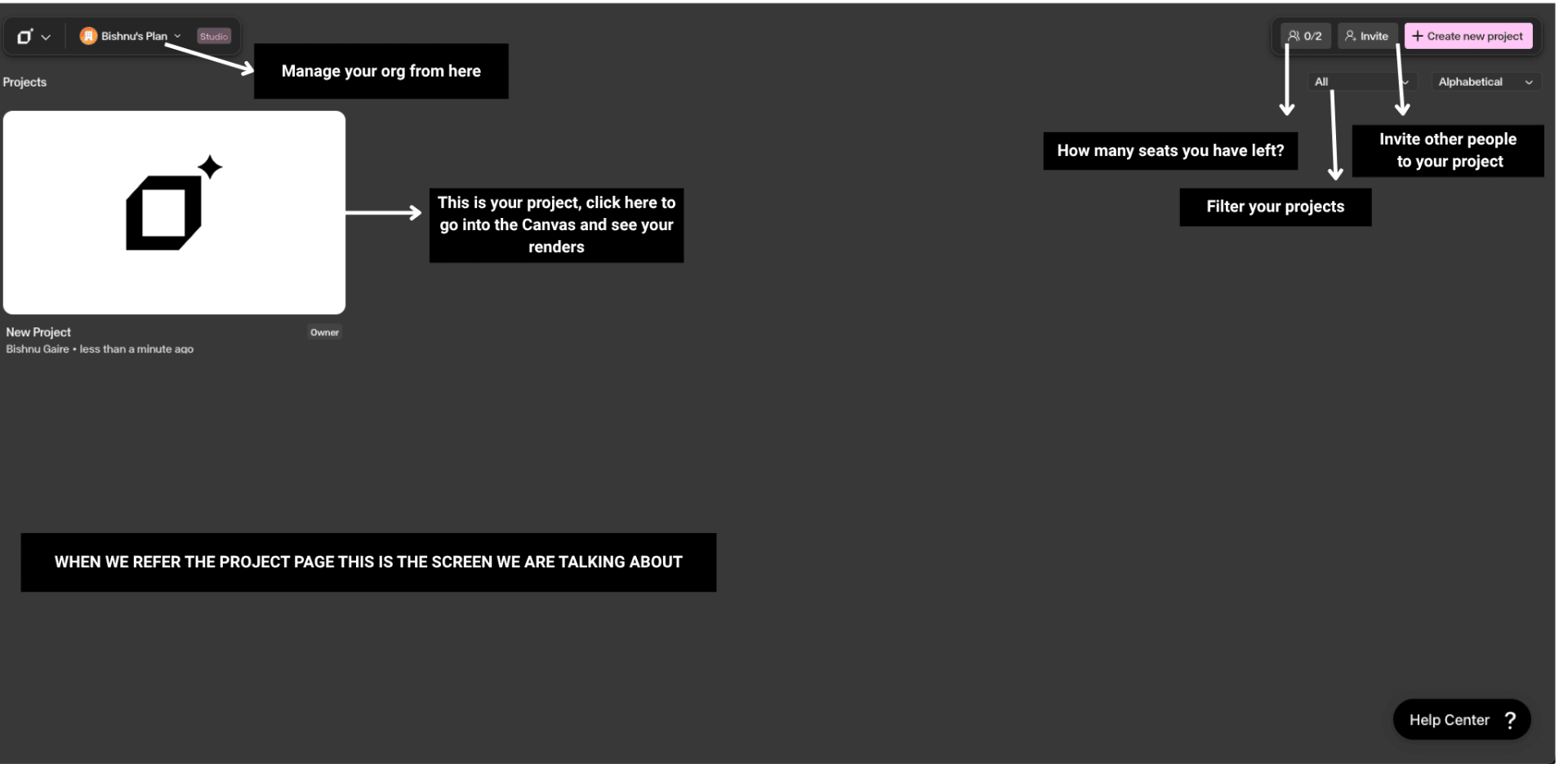
The Gendo Canvas is a collaborative environment where your whole team works together. Discuss your project, test ideas, and make decisions — all in one place. Everyone stays on the same page, with decisions captured and tracked throughout.
From concept to presentation
Quickly test ideas, accurately render your designs, change materials, add details, and assemble a final pack for presentations and planning applications. The canvas supports every stage of the design process.
Always on the latest models
Gendo leverages the latest AI models as part of the platform, so you can forget about the AI noise and focus on what matters — design. No separate subscriptions, no manual updates, no prompt engineering required.
Step by Step
Upload your design to the canvas
Bring your sketch, CAD screenshot, or reference image onto the canvas using the Upload button in the bottom toolbar. Set context on the image to help the AI understand the content.
Choose a tool or use the AI Assistant
Select your image and pick an action from the contextual toolbar — Render, Material, Populate, Style, or Enhance. Alternatively, open the Gendo AI Assistant and describe what you want in natural language.
Learn more in the Gendo AI Assistant guide.
Iterate and compare variations
Generate multiple versions side by side on the canvas. Compare material options, lighting conditions, and design directions without leaving the workspace.
Collaborate and finalise
Share the canvas with team members and clients. Use sticky notes for feedback, pin key decisions, and export final visuals for presentations or planning submissions.
Get Better Results
Use the canvas as your single source of truth — pin decisions, comments, and variations so nothing gets lost between meetings.
Leverage the Gendo Assistant to quickly test ideas by describing changes in natural language, without leaving the canvas.
Share your canvas with clients and stakeholders for direct feedback, reducing email chains and misinterpretation.
Combine features like Enhance, Populate, and Material Edit within a single canvas session to build a comprehensive visual narrative.